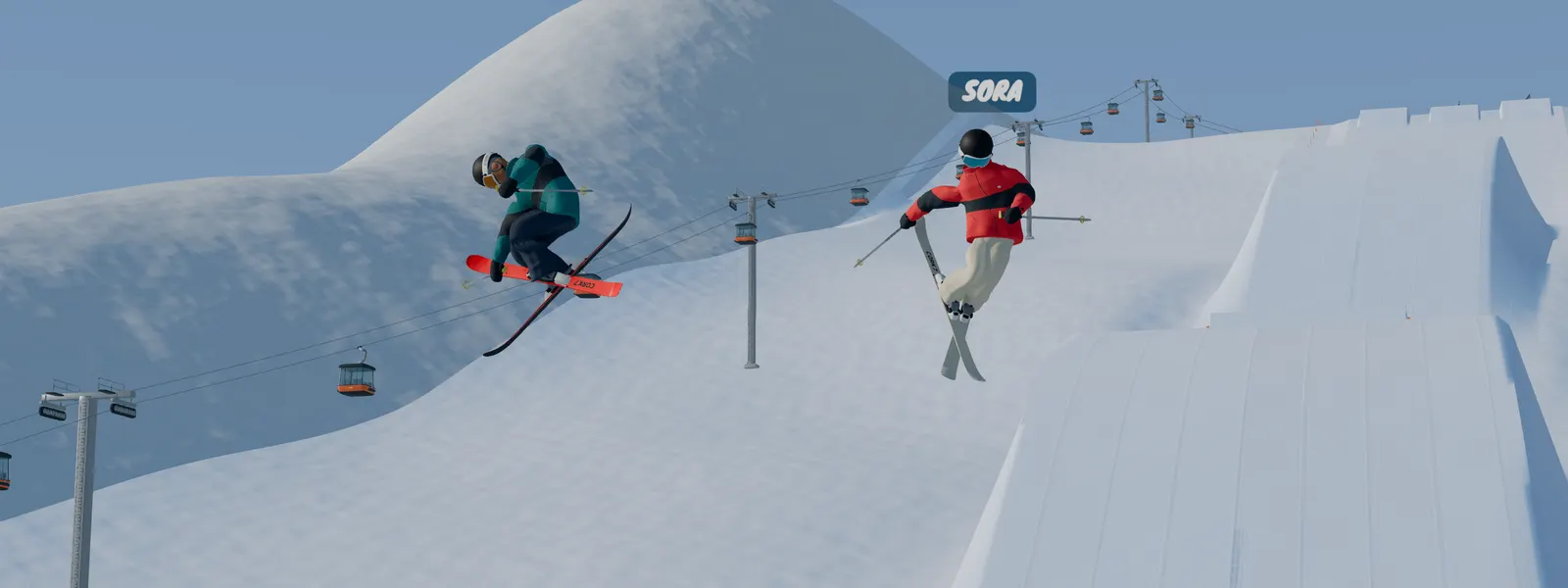
How to save a Cork7 replay
- Complete the run and open Watch replay from the result screen.
- Review the feature or landing you want to keep.
- Use Save replay for a run you want to retain beyond the automatic recent-run collection.
- Open the clip controls when you want a downloadable video.
The latest five runs are stored automatically in this browser. Deliberately saved replays are kept separately from that rolling collection. Save a favourite while you can still identify it, rather than assuming it will remain among your recent attempts after more laps.
For practice, keep one example of a clean attempt and one that shows the problem you are working on. Comparing the same feature makes the replay useful beyond remembering a high score.
Pause, seek and choose a camera
In the replay, Space plays or pauses, the arrow keys seek, and C changes camera. Pause near takeoff first, then look at the landing. You can focus on one part of the movement without trying to inspect everything during a live run.
Choose a camera that shows the question you are asking. An angle that makes a grab easy to recognize may be less useful for studying the whole approach. Change the view when it helps, then compare the same part of the next attempt.
A replay is also a good place to plan a small practice goal. Decide whether your next lap is about a straighter approach, a shorter rotation input or a different grab. Keep that goal simple enough to remember when you return to riding.
Export a video clip you can keep and share
The clip controls let you select part of a run or the whole run, then export a video on your device. A short clip is useful when you only want feedback on one jump. Include enough approach and landing to make the movement understandable.
After exporting, open the downloaded video and confirm it contains the moment you wanted. Give the file a name that will still make sense later, such as the park and the trick you were practicing. Keep a separate copy if the clip matters to you.
Videos are rendered locally and downloaded to your device; the game does not automatically publish them. Multiplayer recordings can include other riders. Consider who is visible before choosing where to share a session.
What happens when you change browser or device?
Replay storage belongs to the original website address and the browser on that device. Signing into the same account somewhere else does not move those local files. Replays from the earlier Vercel address also remain at that origin rather than transferring automatically to cork7.com.
Account history and a local replay are different records. Seeing an online score does not mean the replay file will be available on another computer. Return to the browser where you recorded the run when you want to export it.
Export wanted clips before clearing the original site's data, resetting a browser or moving to another device. Logging in again does not restore a deleted local replay.
For 1v1 sessions, the game can show both riders' best runs side by side. Recent duel highlights have their own place under Replays. Save or export a highlight you care about promptly, using the same habit as a favourite Solo run.
Sources
Game controls and features may change. Refer to the original game's current settings and field guide.