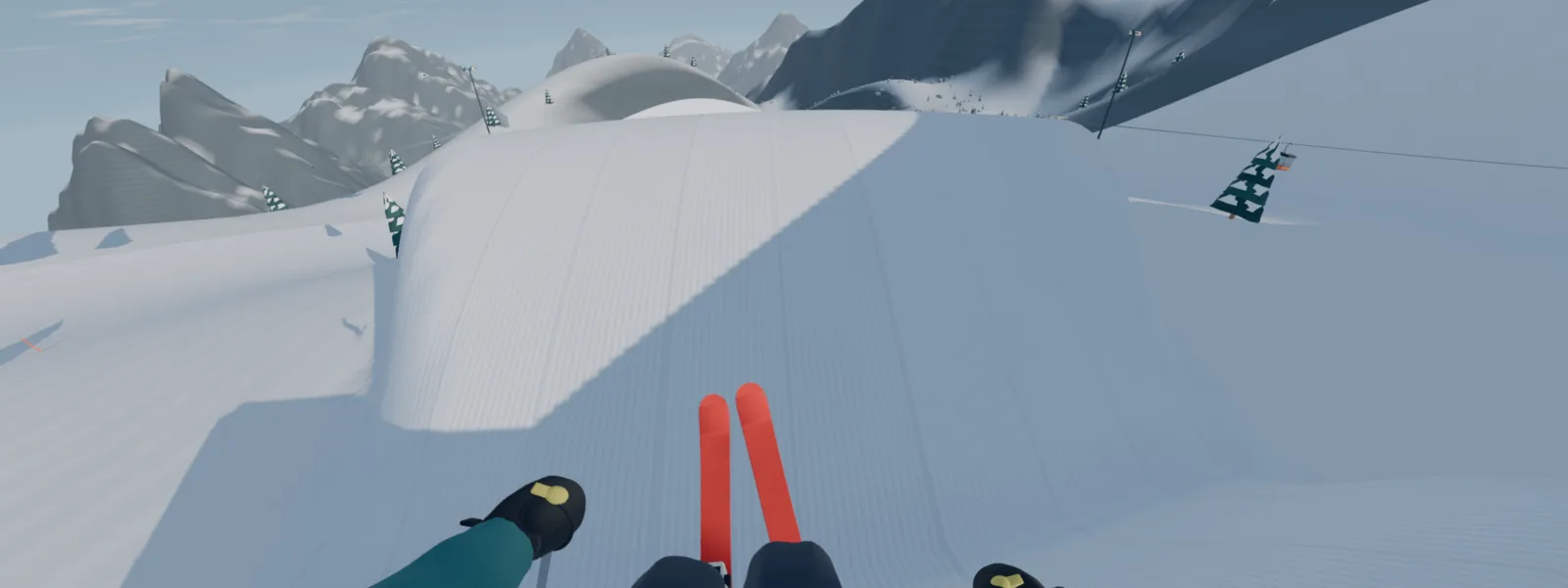
Can you play Cork7 on mobile?
The official guide provides on-screen controls for touch devices. That makes a phone or tablet an option to try, but it does not establish a fixed performance level for every model. Start with a short Solo lap and check whether you can see the landing and reach the controls comfortably.
Keep the first attempt uncomplicated. Test steering and pop before trying combinations that need several simultaneous inputs. If the touch layout feels cramped, a larger screen or the recommended keyboard setup may be more comfortable for learning.
Do not judge a device from a single difficult trick. First decide whether ordinary movement looks steady and inputs respond as expected. Then experiment with the game's graphics settings. If riding remains uncomfortable, use a different device rather than expecting a particular setting to guarantee smooth play.
What to do when Cork7 is not loading
- Use a current browser and confirm that it supports WebGL 2.
- Check that hardware acceleration is enabled in the browser's settings.
- If the initial download has stalled, use Reload game on the game's loading screen.
- Let the game reach its menu before testing controls or starting another launch.
Separate the symptoms before changing settings. A loading screen that stops progressing is a different problem from a running game with an uneven frame rate. Note what you can see and whether the issue happens every time; that gives you a useful description if you contact the original game's developer.
A browser that cannot provide the required graphics support needs attention before trick controls will help. Avoid repeatedly changing controls to troubleshoot a screen that has not finished loading.
Adjust graphics for a steadier run
Open the pause menu and lower graphics quality if the frame rate is poor. Cork7 provides High and Performance graphics options, plus a 30 FPS cap. Try one change at a time and return to the same short stretch of park to compare it.
Choose a setting you can ride with comfortably. A lower frame-rate target may feel different from an uncapped setting, so compare how easily you can follow the approach and landing. Keep your route and camera as consistent as possible while deciding.
Begin in Solo if you want a simpler comparison. Once the game feels comfortable there, try the multiplayer park you intend to use. This is a practical way to narrow down the circumstances of a problem; it does not predict how every device will behave in a busy room.
Check focus, controller input and camera comfort
If a connected controller is missing, click the game window and press a button. Xbox and PlayStation controllers are supported; USB and Bluetooth are options. The official guide suggests closing Steam if its controller handling is taking over the pad.
Use Settings, then Controls, to inspect the current layout before assuming a familiar button still has its default action. Test one movement input, then pop, then a grab. That order helps distinguish a binding problem from an unfamiliar combination.
The camera settings also include a first-person view. Choose a view that lets you read the next feature comfortably, and keep it unchanged while learning a new trick.
Before clearing browser data as a troubleshooting step, export any replay clips you want to keep. Local saves can be removed with the original site's stored data.
Sources
Game controls and features may change. Refer to the original game's current settings and field guide.